
Managed Uptime Kuma hosting
Know your website is down before your customers do
- Live in minutes
- Daily backups, one-click restore
- SFTP access, no lock-in
- from US$1.10/mo in Poland
Uptime KumaWhat you're getting
Uptime Kuma watches your websites, APIs, and services around the clock and tells you the moment something goes down, by email, Slack, Discord, Telegram or 90+ other channels.
On CoreHost it runs on its own managed instance in your region, so your monitoring does not live in the same basket as the things it monitors. A Lite plan comfortably watches dozens of endpoints.
On CoreHost
- HTTP(S), TCP, ping, DNS, keyword and certificate-expiry checks
- Status pages you can share with your team or customers
- 90+ notification channels out of the box
- Runs happily on the Lite tier
GuideStatus pages and alerts on your own Uptime Kuma
A hosted monitoring service, or your own Uptime Kuma?
Hosted monitoring services are quick to start, and most of them price by the number of monitors, the check interval or the number of status pages. Your own Uptime Kuma has none of those meters: one flat monthly price covers the instance, and you decide how many monitors run and how often they check.
The trade off is that one instance checks from one place. A hosted service may probe from several continents at once; your instance probes from the region you deploy it in. Pick the region closest to the people who use what you are watching. For a second point of view, run a second instance in the other region and send both to the same notification channel.
Keep the monitor away from what it watches. If your website and your monitoring share a server, one outage takes out both and nobody hears about it. If the site you watch also runs on CoreHost, put its monitor in the other region.
Set up a public status page
- Add a monitor for each service your users care about: Add New Monitor, then HTTP(s) for a website or API, HTTP(s) Keyword to check that a word appears on the page, or TCP Port, Ping or DNS for other services.
- Open Status Pages and choose New Status Page. Give it a name and a short slug; the page is served at /status/your-slug on your app address.
- Add groups such as Website, API and Email, and add your monitors to them. Only the monitors you add are shown, so internal checks stay private.
- Add a description, your logo and a footer, then save. When something breaks, post an incident on the status page so visitors can see what is happening without emailing you.
- To serve it on your own address, such as status.example.com, add the domain in the Domain tab of your app on CoreHost and create the CNAME and TXT records it shows. Then add the same domain under Domain Names in the status page settings, so visitors land straight on the status page.
Alerts that actually reach you
Add a notification under Settings, Notifications, and tick Default enabled so every new monitor uses it. Chat apps such as Slack, Discord and Telegram, push apps such as ntfy and Gotify, and webhooks work straight away. Email needs an SMTP provider on port 465 or 587, because port 25 is blocked on our network.
Set retries on each monitor to 1 or 2, so a single slow response does not wake you at night, and add a certificate expiry notification for every HTTPS site you look after.
Backups, and moving an existing instance
Your monitors, their history and your status pages live in the app's database, which is part of the daily backup. You can restore any backup yourself from the Backups tab.
Moving from another server? If your old instance uses the built-in SQLite database, the files that matter are kuma.db, kuma.db-wal if it exists, and the upload folder. Stop both apps, copy those files into your new app over SFTP from the Files tab, and start it again. The guide to moving your apps to CoreHost has the full steps. If your old instance uses MariaDB, open a support ticket first.
In the browserSee it running
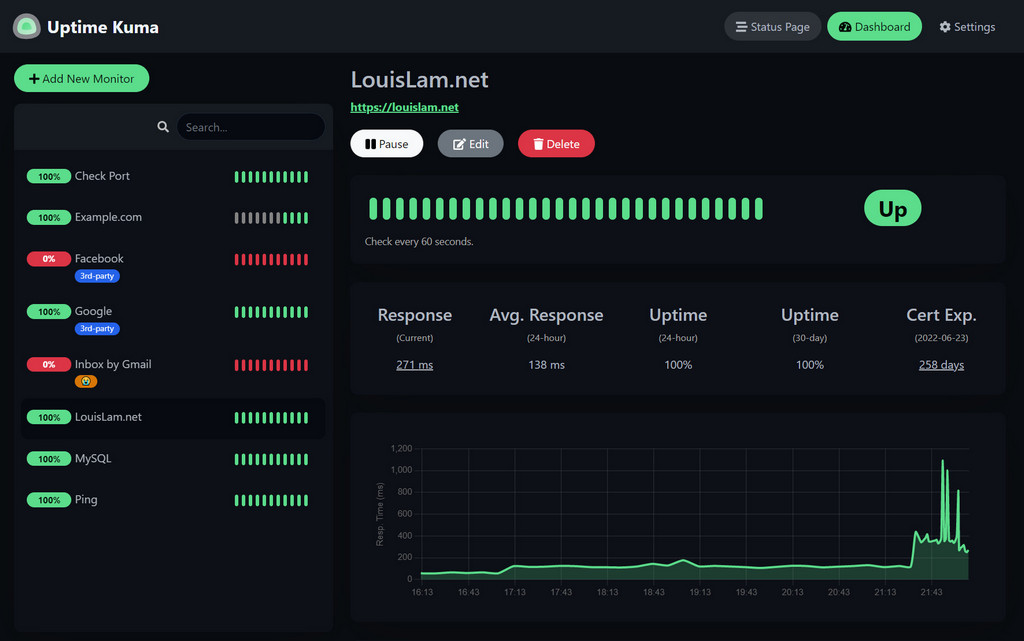
Screenshot published by the Uptime Kuma project.
Included with every appStandard, not add-ons
Daily backups, one-click restore
Every instance is backed up daily. Restore any snapshot yourself from the panel. No support ticket, no fee.
SFTP file access
Direct SFTP access to your app's data folders. Your files are never locked away from you.
Custom domain + auto TLS
Bring your own domain with a CNAME and a TXT verification record. Certificates are issued and renewed automatically.
AI + human support
A 24/7 AI engineer that can actually inspect and fix your app, with a human escalation path. App-level help included.
Automatic updates with rollback
Each update is tested on a copy and backed up first, and rolled back automatically if the app fails its checks.
Per-app firewall
Restrict access to the IP addresses you choose, with an Add my IP button. Off by default.
Backups to your own S3
Add encrypted, incremental backups to your own S3-compatible storage on top of the daily ones we include.
Resize any time
Move up or down a tier from the panel. Your balance is drawn by the hour, so you pay the new rate from the change.
RegionsWhere Uptime Kuma runs
Uptime Kuma can be deployed in Sydney, the US and Poland. Pick the region closest to the people who use it. Daily backups are encrypted and stored in the EU.
- Sydneyfrom US$1.50/moClosest to Australia and New Zealand.
- The USfrom US$1.50/moClosest to the Americas.
- Polandfrom US$1.10/moLowest price, 25% less than the other regions.
Moving to CoreHostMove your existing Uptime Kuma here
Already running Uptime Kuma on PikaPods, a VPS or your own server? You can bring your data with you. Deploy the app here first, then follow the route below, and keep your old app until you are happy.
Copy your files across
This works when your old Uptime Kuma keeps its data in the built-in SQLite database: you copy the database file and the upload folder across.
- Deploy Uptime Kuma on CoreHost and open it once so it finishes its first start.
- Stop your old Uptime Kuma, so its files are complete.
- Over SFTP, download kuma.db, kuma.db-wal (if it exists), kuma.db-shm (if it exists) and the upload folder from the old data folder. The -wal file holds your latest changes, so copying only kuma.db loses data.
- On CoreHost, stop the new app from its page in the control panel. In the Files tab, delete the empty kuma.db files and upload yours, kuma.db first and kuma.db-wal second, plus the upload folder.
- Start the app. There is no create-admin screen this time: sign in with your old username and password.
Check it worked. Your monitors are listed, a graph shows history from before the move, and your status page loads.
After the move
- Open Settings, General and change the Primary Base URL to your new address.
- Push monitor URLs and status page links change host. Update the scripts that call them.
- Notification channels that send email on port 25 do not work here; use port 465 or 587.
Ways to move it
- Do it yourself. Deploy Uptime Kuma, let it start once, then use the steps on this page, with SFTP and the file manager in the Files tab. A backup taken first gives you a clean point to go back to.
- Ask us to move it. Open a ticket from your control panel with the app and where it runs now. Support will tell you what can be moved and help you do it, and nobody touches your old app.
A pod created for Uptime Kuma in late 2025 or after may keep its data in a MySQL database instead of kuma.db. If you see no kuma.db over SFTP, history cannot be moved by copying files: open a ticket and we will help bring your monitor list across.
How moving to CoreHost worksCoreHost compared with PikaPodsMore Monitoring and alerts apps
DeployPick a size and a region
1. Plan (Uptime Kuma needs Lite or larger to run well)
Prices exclude GST/VAT where applicable. Drawn hourly from your prepaid balance, cancel any time.
Lite
- 1 vCPU
- 1 GB RAM
- 5 GB NVMe
Lightweight tools: bookmarks, feeds, uptime checks, password vaults.
Standard
- 1 vCPU
- 2 GB RAM
- 10 GB NVMe
The right fit for most apps: automation, wikis, databases.
Power
- 2 vCPU
- 4 GB RAM
- 20 GB NVMe
Busy teams and heavier workloads with room to breathe.
Scale
- 3 vCPU
- 8 GB RAM
- 40 GB NVMe
The most demanding apps in the catalog, at full stride.
2. Region
 …
…Australia
$2.30/mo
 …
…United States
$2.30/mo
 …
…Poland
$1.70/moBest value, save 25%
You will be asked to sign in (or create a free account) before your app provisions. Your $5 starting credit covers the first stretch; we only ask for a card when it runs low.
QuestionsAbout hosted Uptime Kuma
Platform-wide questions (domains, backups, email, updates) live on the main FAQ.
Built Uptime Kuma, or help maintain it? If you opt in, part of what it earns here can go to you. See the open-source developer revenue share.